
You may set up memorised transactions. Within each job, receipts, payments, journals, accounts payable and accounts receivable can be created, given a description and saved.
Selecting an existing memorised transaction will create a new transaction with exactly the same coding and payee information as the memorised transaction. The date of the transaction will default to the current date.
Memorised Receipts and Payments
Memorised transactions are available from drop-down menus from Memorised Transactions under Transactions, in the bank account reconciliation screen, from the cheque requisitions and paying-in slips registers when creating batch receipts and payments and from the bank account register.
Examples of memorised transactions would be bank charges, bank interest, PAYG payments and utility bills.
The amount you saved in the original memorised transaction can be amended at the time of receiving or paying the transaction. When you use the memorised Transaction the date will default to todays date.
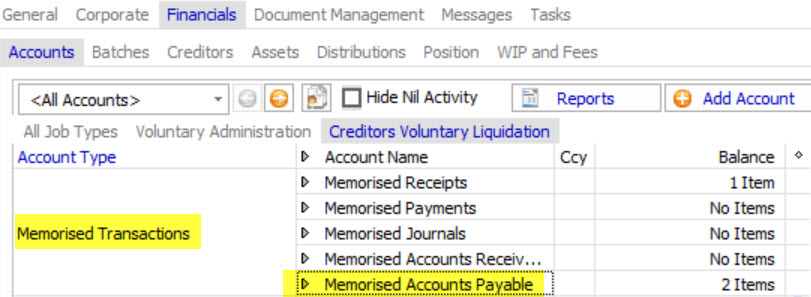
Memorised Transactions can be created from Transactions-> Memorised Transactions->Memorised …. -> Add to/view All Memorised ….OR from Financials->Accounts. Double click on the type of memorised Transaction you want to create.
You can also use a memorised transaction from Transactions-> Memorised Transactions -> Memorised …. and select the memorised transaction to use.
Creating a Memorised Receipt
You can create the receipt from either Transactions-> Memorised Transactions-> Memorised Receipts -> Add to/View all Memorised Receipts, from the Memorised Receipt Account under Financials->Accounts or from the tab in the Cash at Bank Account the memorised receipt will be used in.
Create a memorised Receipt from Memorised Receipts account.
You can use and/or create a memorised transaction from Transactions-> Memorised Transaction-> Memorised Receipts. Add to/view all Memorised receipts to create a memorised Receipt or Select a memorised receipt already created to use.
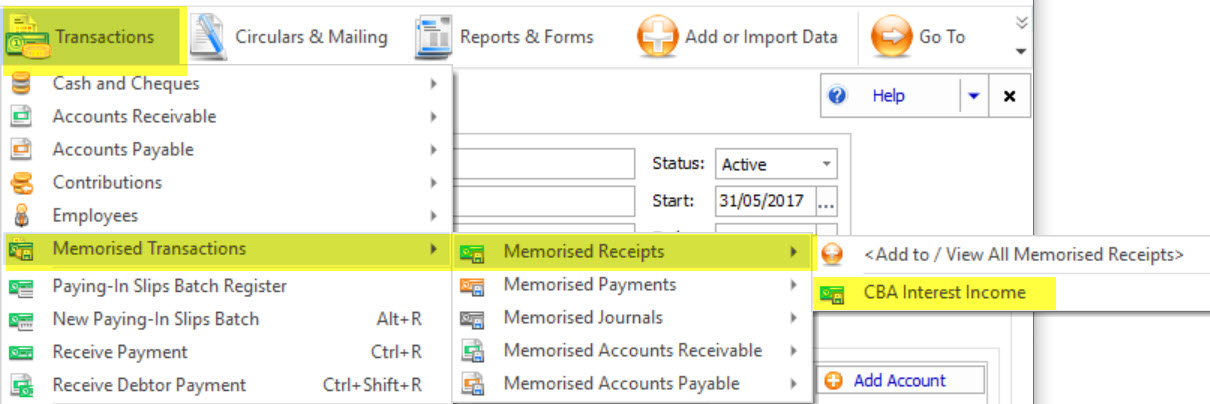
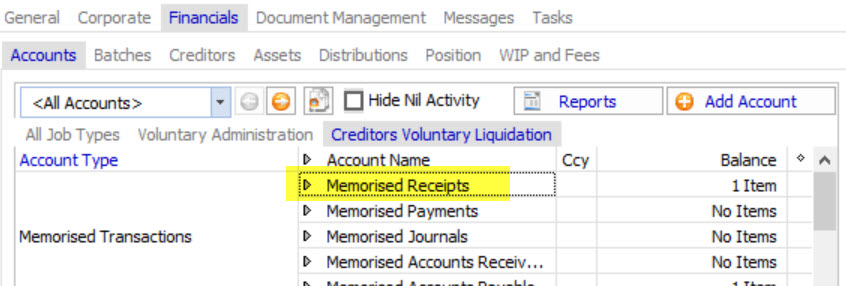
Or create from Financials-> Accounts-> open Memorised Receipts
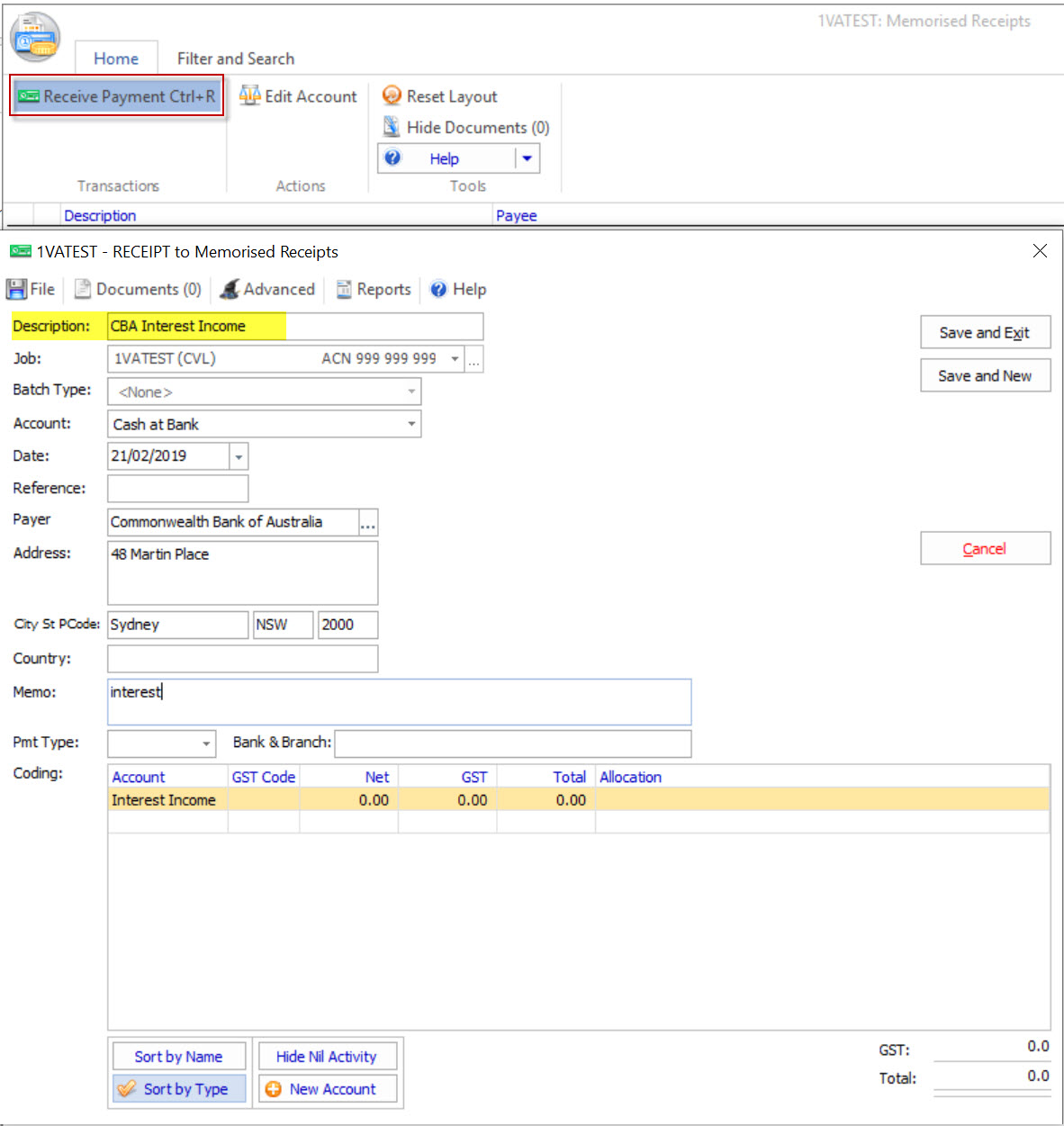
Click on Receive Payment
In the Receipt window enter a description of the memorised transaction and the details of the Receipt you wish to memorise. You will need to enter a description of your memorised transaction
Remember the date will default to todays date when you use the memorised receipt. You can leave the amount blank if you will be entering different amounts each time. Click Save and Exit.
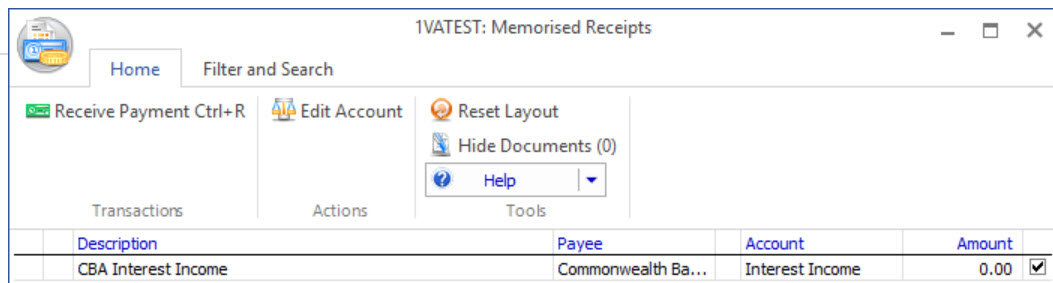
Your transaction is now saved and ready to use.
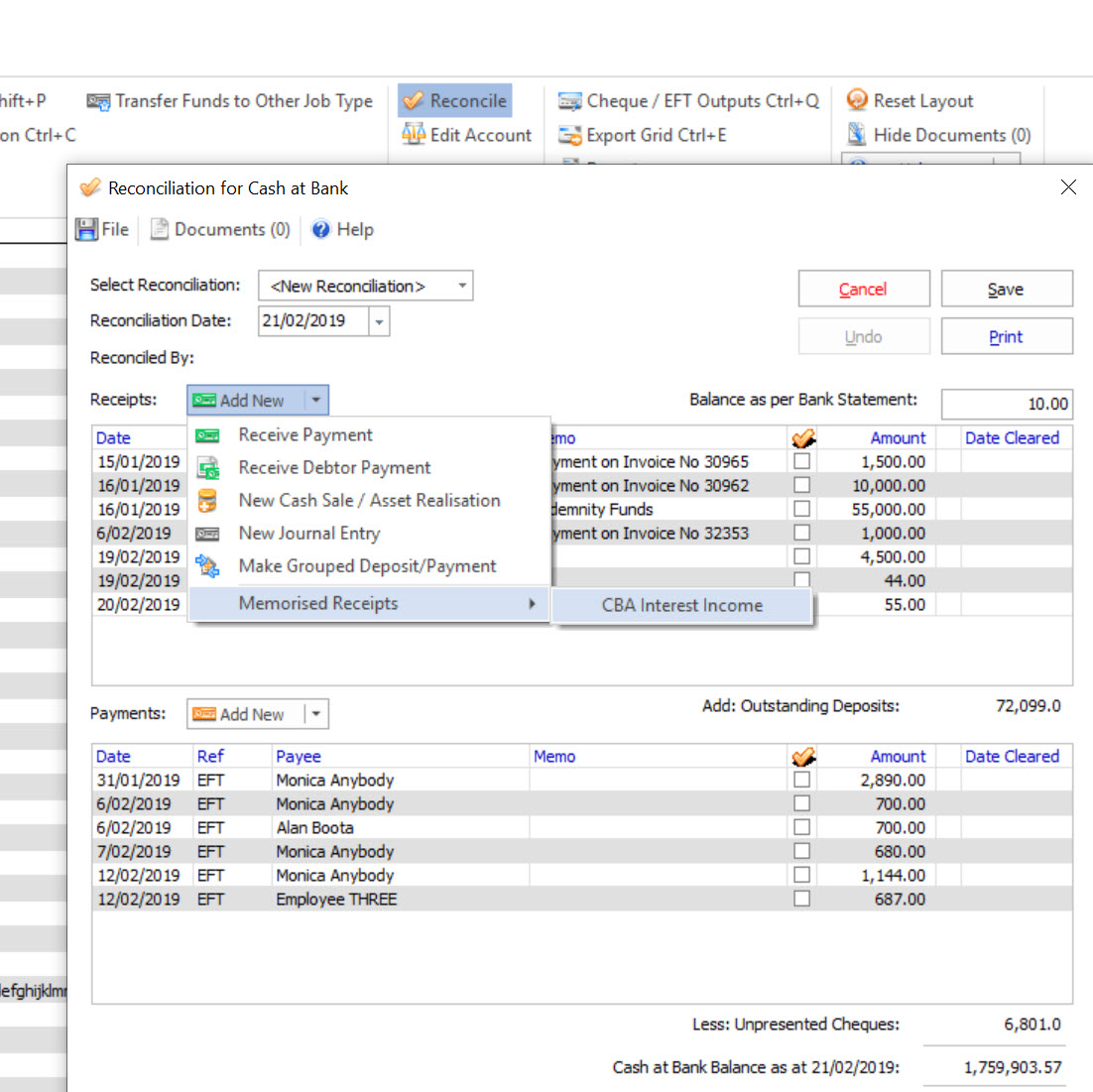
An example of using the memorised transaction when doing a Bank Reconciliation. After entering a Reconciliation date and Bank Statement amount click on the Add New button next to Receipts. From the drop down select Memorised Receipts-> Select your memorised transaction.
To use a memorised transaction from the Cash at Bank screen click on the Memorised Transactions tab-> Memorised Receipts for example-> Select your memorised transaction from the drop down, Enter any additional details, amounts etc then save and exit.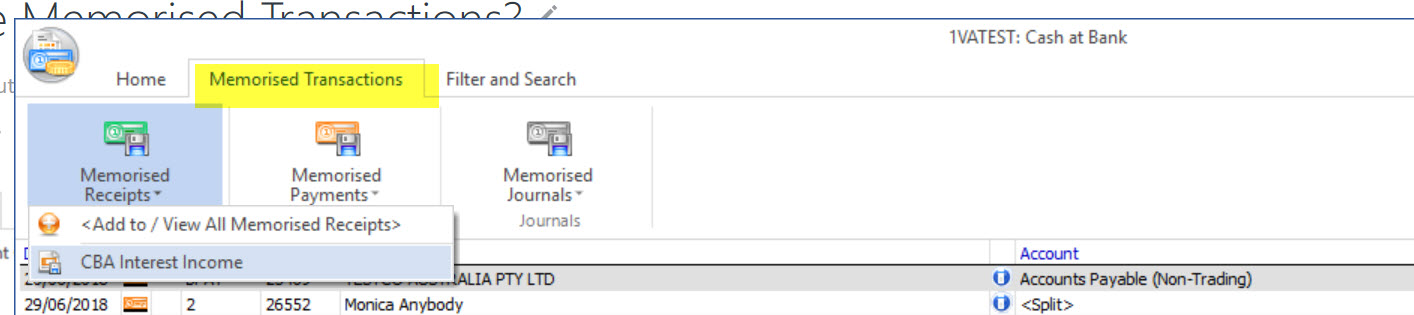
You can also use the Memorised Receipt from Transactions-> Memorised Transactions-> Memorised Receipts-> select the memorised transaction.
Memorised Payment and Journals work the same way.
Memorised Accounts Payable and Accounts Receivable
Creating a Memorised Accounts Payable
You can use and/or create a memorised transaction from Transactions-> Memorised Transaction-> Memorised Accounts Payable. Add to/view all Memorised Accounts Payable to create a memorised Accounts Payable or Select a memorised Accounts Payable already created to use.
OR
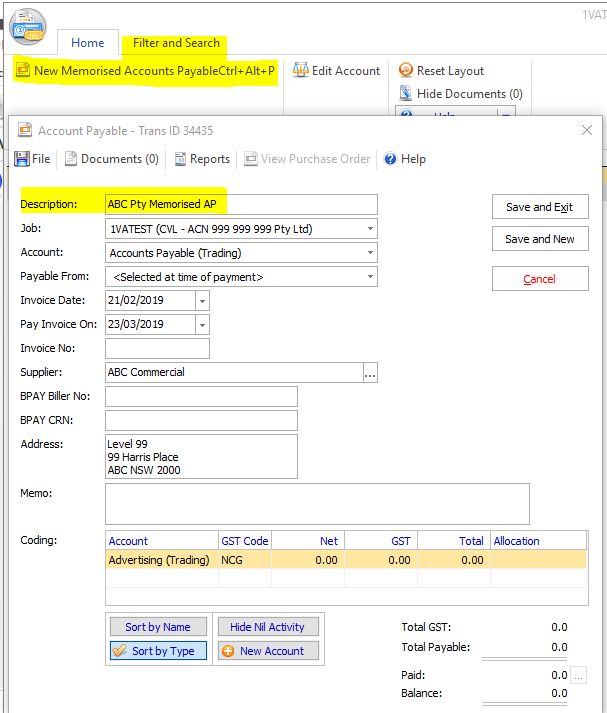
From the Accounts Register open Memorised Accounts Payable. Click on New Memorised Accounts Payable.
Enter a description for the Accounts Payable (AP) and complete the form. Again the invoice date will default to todays date when you use the memorised AP form. Select the supplier and enter an account to code the receipt to. Save and exit
To use the memorised AP you can click on Transactions-> Memorised Transactions-> Memorised Accounts Payable and select the AP you wish to use
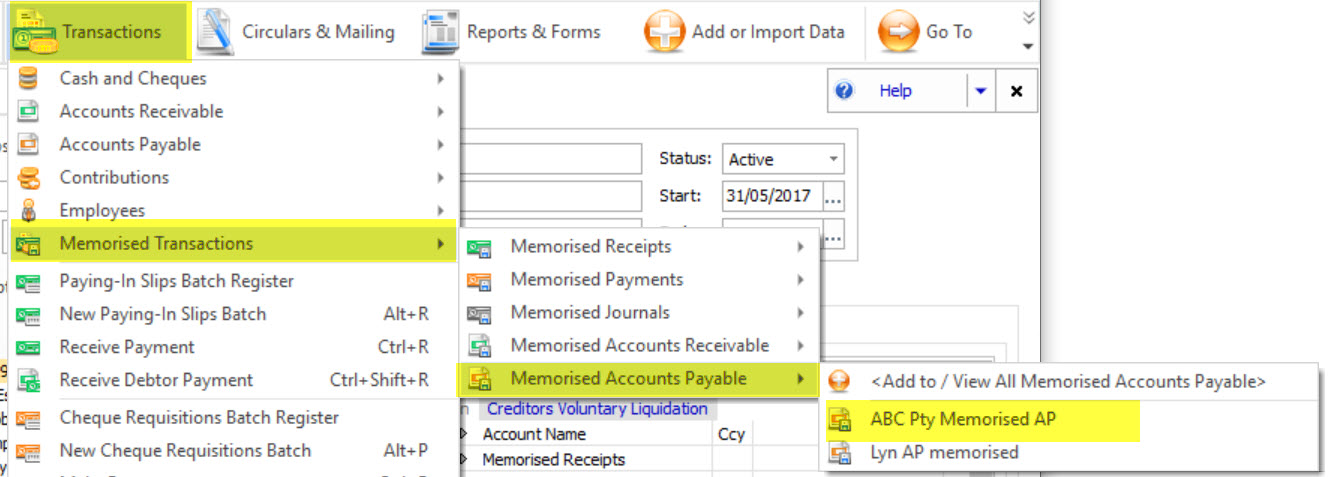
or
Transactions-> Accounts Payable-> Accounts Payable Listing. Click on Memorised A/P and select the AP you wish to use.
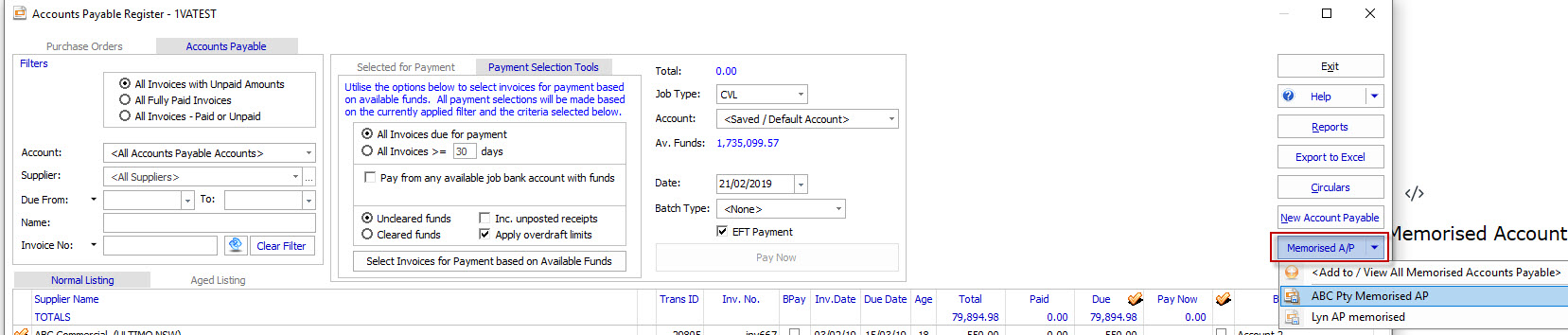
Account Receivables (AR) work the same way however the only way to use a Memorised AR is to select it from the Transactions-> Memorised Transactions-> Memorised Accounts Receivable.
Comments
0 comments
Please sign in to leave a comment.