
You may want to hide document templates that you do not want users to "see". You can hide one document or multiple document at one time.
To hide a single Document Template
To hide a Document Template:
- Open Manage Document Templates.
- Locate the document you wish to hide.
- Click on the document template to highlight it
- Click the "Hide" check box on the File attributes
The document is now hidden from the job menus. The document template will remain in the list with a strike out line through it.
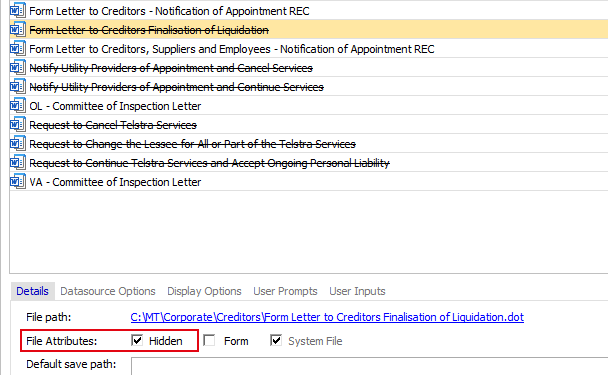
To reinstate the document template, simply follow the same steps above and click "Unhide".
Note: You will need "Document Templates - Hide" permissions to perform this task
Hiding Multiple Documents
It is possible to hide template documents in bulk. Select the first document template you wish to hide by placing your cursor on it, hold the Shift key down then click on the last document template in your list. This will highlight all the documents templates in that range, you can then right click and choose HIDE.

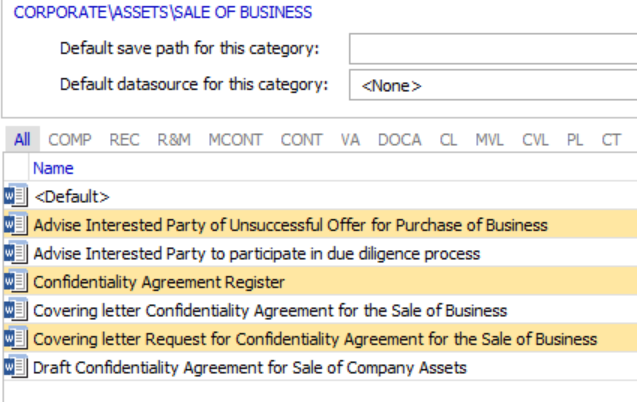
To select a group of document templates in a category that are not in a direct line you can click the first document template then hold the CTRL key down and select the next document template. All document templates selected will be highlighted. Again right hand click and select HIDE.
Comments
0 comments
Please sign in to leave a comment.