
Shareholder distributions are distributed by class. You must run each component separately. Running the Cash and Specie Component as one dividend will cause the in specie component to report as a Receipt and Payment in the Form 5602.
IN SPECIE DISTRIBUTIONS
A shareholder distribution in specie is a non cash transaction, therefore there isn't a cash book amount and will not affect the bank account.
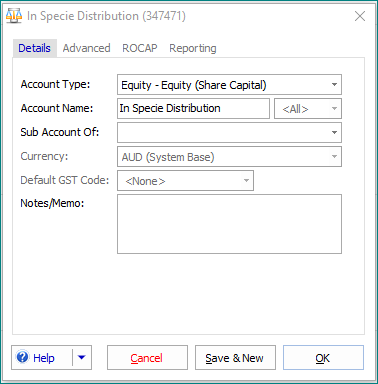
1. Create a new account called "In Specie Distribution" under the Equity - Equity (Share Capital) account type (if not already in your COA).
2. Select the Share Class
Navigate to the Corporate > Members register.
Double-click on the share class to be distributed.

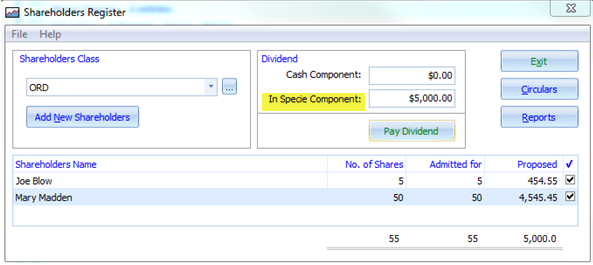
3. Enter the In Specie amount
Enter the In Specie amount in the "In Specie Component" field
3. Pay Dividend
Click the "Pay Dividend" button. Click the "OK" to propose the dividend.
The Shareholders Dividend form appears.
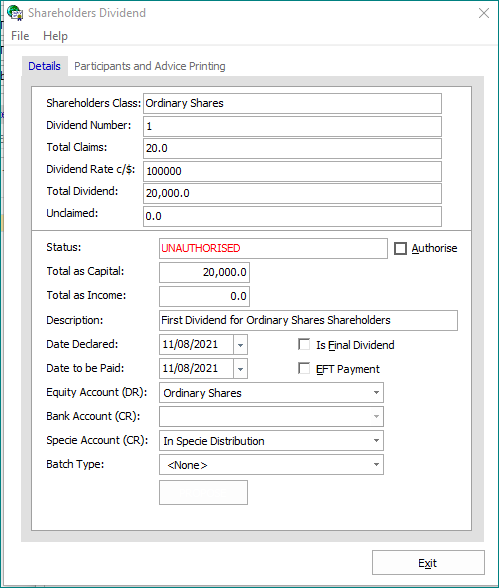
4. Select the "In Specie Distribution" account for the Specie Account.
5. Select Batch type <None> or <New Batch>. This will depend on your permission settings.
5. Click the "Authorise" tick box.
You will be prompted "Do you want to pay the dividend?"
You will be prompted "Do you want to pay the dividend?"
6. Confirm
Click the "OK" button. The dividend is now processed.
Click the "OK" button. The dividend is now processed.

Note: The dividend may be created by one user and then authorised later by another user, if the first user does not have permissions to authorise a dividend.
The dividend will now appear in ASIC Form 5603 and 5602 as an in specie distribution.
CASH DISTRIBUTION
1. From CORPORATE-> MEMBERS REGISTER double click on the share class to be distributed
2. Enter the Cash Component amount to be distributed & enter for the proposal column to populate.
Click on PAY DIVIDEND & select OK to Propose a dividend
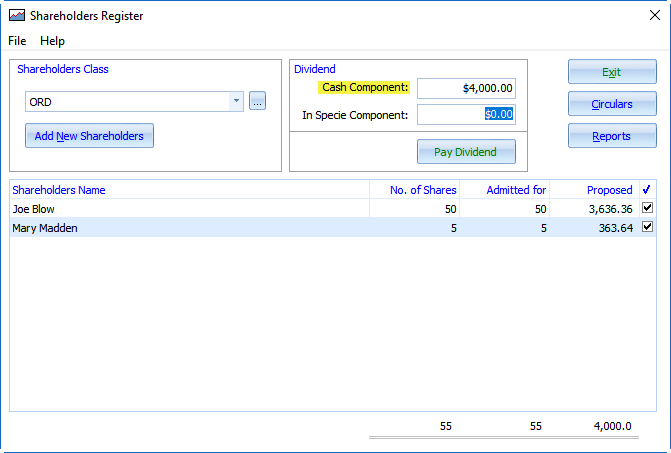
3. Confirm you wish to Propose the Dividend. Click OK
In the shareholder dividend page you will note the Bank Account field is completed with the default account details. Confirm details and click PROPOSE
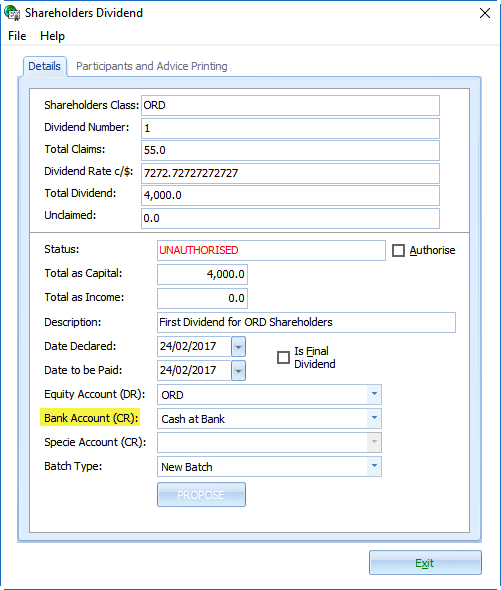
The distribution is now sitting in the Distributions Tab ready to be authorised.
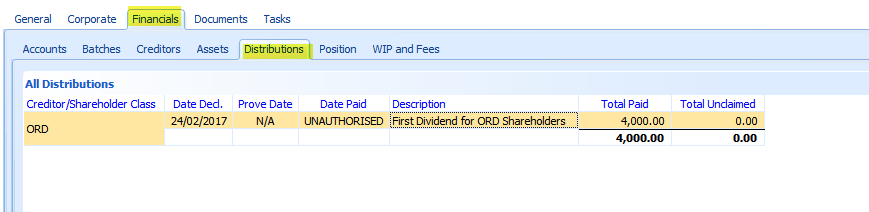
4. User– double click on the distribution to open. Click on Authorise and OK. This will create a batch to be submitted for electronic approval to the Appointee.
OR
If you have the correct permissions you can click on Authorise and the batch will be created.
Comments
0 comments
Please sign in to leave a comment.