
Overview
The Position screen shows the current position of the job.
A projection amount against an expense account indicates an expected cost, for example, known advertising costs, bordereau charges or solicitors fees, against which the actual costs will be charged at a later date. Projections entered show in the 'Estimated Future' column of the Position screen and should be regularly reviewed and updated as the case progresses.
Please note that this section only refers to the projection of the costs and expenses of a job. Asset level projections where an asset is not shown on the Statement of Affairs are dealt with here. Projections regarding statement of affairs assets are adjusted by altering the ERV Low value are discussed here).
Entering projections
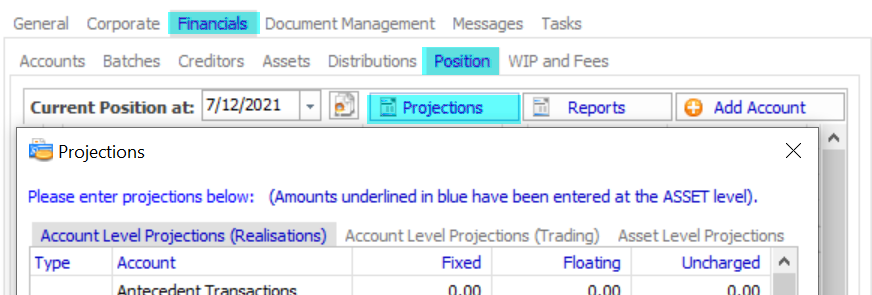
From the Position tab, click the Projections button. The projections screen is shown with the 'Account Level Projections (Realisations)' tab selected:
As an example, for the current job, solicitors have agreed to limit their costs to $2,500 plus GST.
Note
The treatment of GST here depends on the GST code assigned to the individual account (chart of accounts). If a non-GST entry, such as Court fees, is made against Legal Fees, which generally incurs standard rate GST, the Position tab and will include GST on the non-VAT entry.
This is resolved by only making non-GST projections against accounts which have a zero rate (or 'no tax' or 'exempt', as appropriate) GST setting.
You may review the various tax reports, please see Tax Transaction Detail and Transaction Detail for an explanation as to how those reports can be used to identify incorrect GST postings.
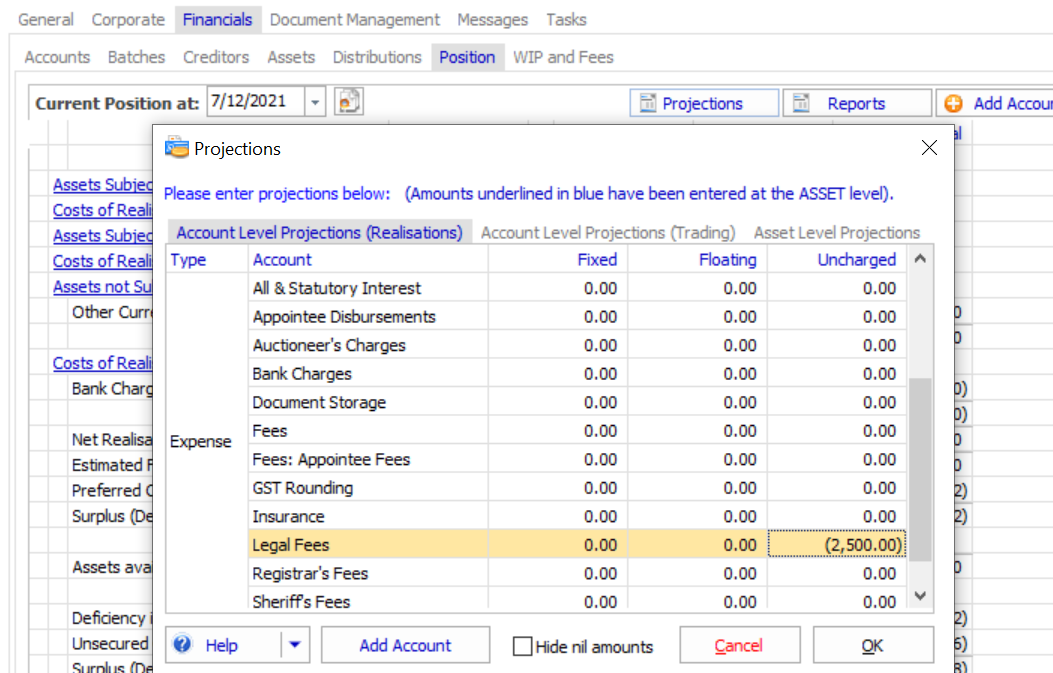
Scroll down until the Legal Fees account is shown in the Accounts column.
Click in the Uncharged column and enter -2500. Tab, Return or select another cell to enter this figure:
If the solicitors are also going to assist with the disposal of a fixed charge asset, that can also be entered:

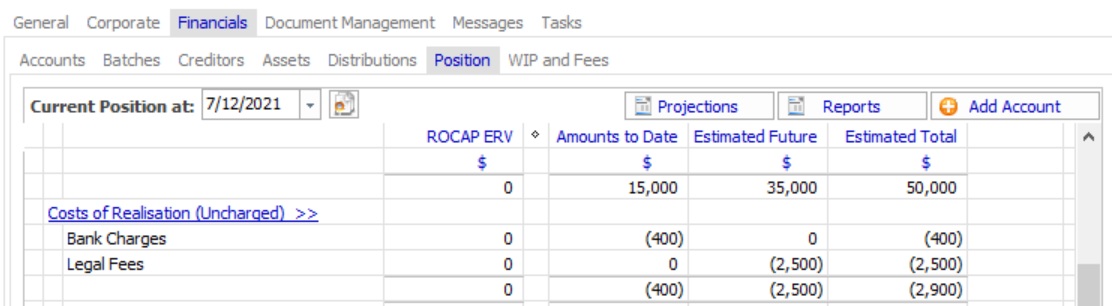
Once all projections have been entered, click OK to close the Projections screen. The Position tab will then be updated with the projection values entered into the Estimated Future column.
Reporting
A printed report can be obtained from the Reports button in the Position tab and selecting Current Position.
Comments
0 comments
Please sign in to leave a comment.