
1. From the Standard toolbar, select Circulars & Mailing > Labels and Envelopes > Mailing Labels- your choice of label format.
2. The following Document Production Wizard will appear:
Select the relevant recipients. For example, in Creditors, you can select All Creditors or you can select a sub-group such as Unsecured Creditors. Each category has different options.
You should see all the recipients selected on the right hand side. You can then select all, unselect all or select specific recipients from the list.
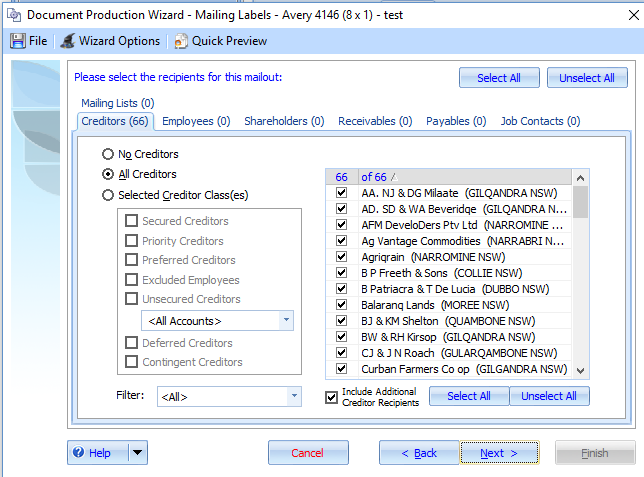
Click Next
3. You will then see a preview of the list of recipients with address, any recipients with an unknown or RTS address type will appear in the Unknown/RTS tab and will not receive the circular.
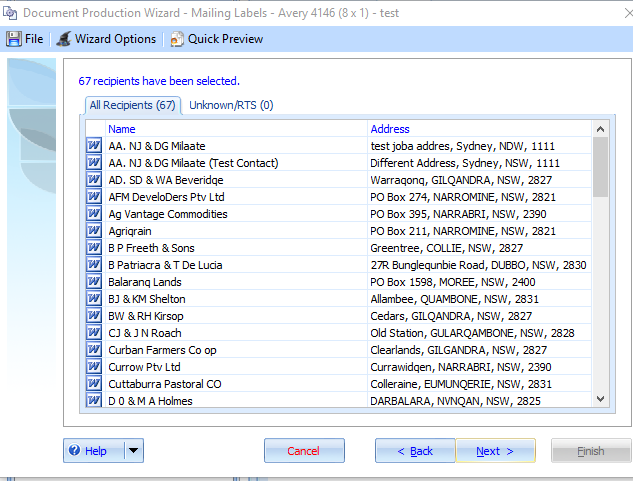
Click Next and the following screen will appear:
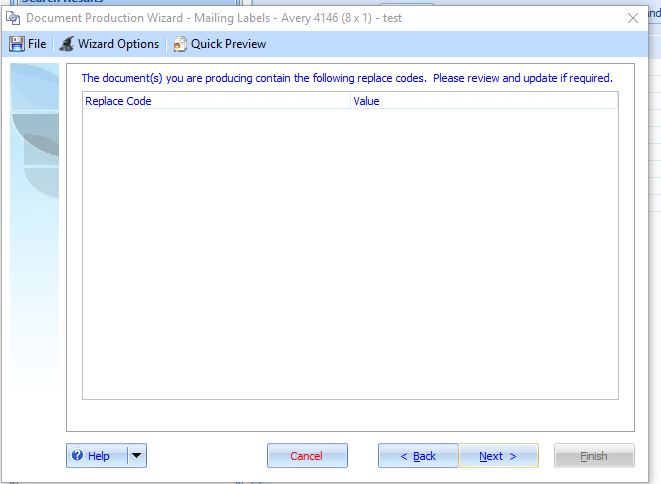
4. There are no replace codes in the labels so click on Next.
5. Click on the Preview Button.
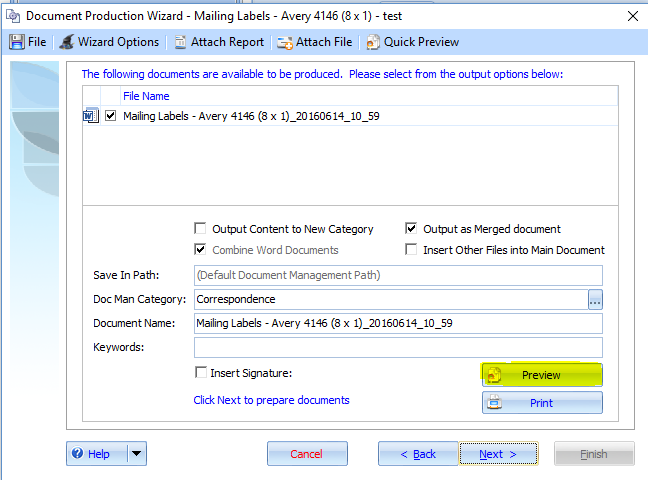
6. The labels will open in Word.
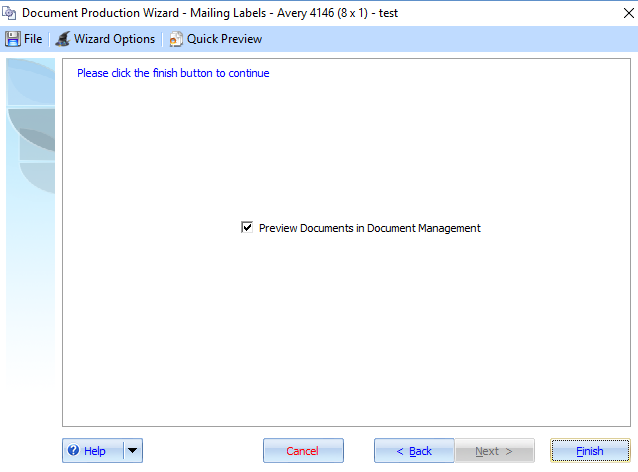
After previewing select NEXT. Tick preview documents in Document Management and select FINISH.
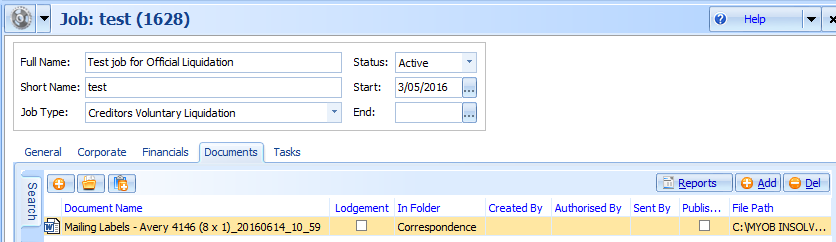
7. Your documents tab will open.
Double click on the Mailing Labels document to open. Ensure labels are in the printer before printing.
Comments
0 comments
Please sign in to leave a comment.