
CONVERTING A PURCHASE ORDER INTO AN ACCOUNTS PAYABLE ENTRY
The Purchase Order (“PO”) and Accounts Payable (“AP”) registers now contain a tab which allows you to switch between the AP and PO register without exiting the form. Switching does not change the currently applied filers and selections.
Select: TRANSATIONS ->ACCOUNTS PAYABLE -> ACCOUNTS PAYABLE REGISTER
Click on the Purchase Orders tab to view open purchase orders
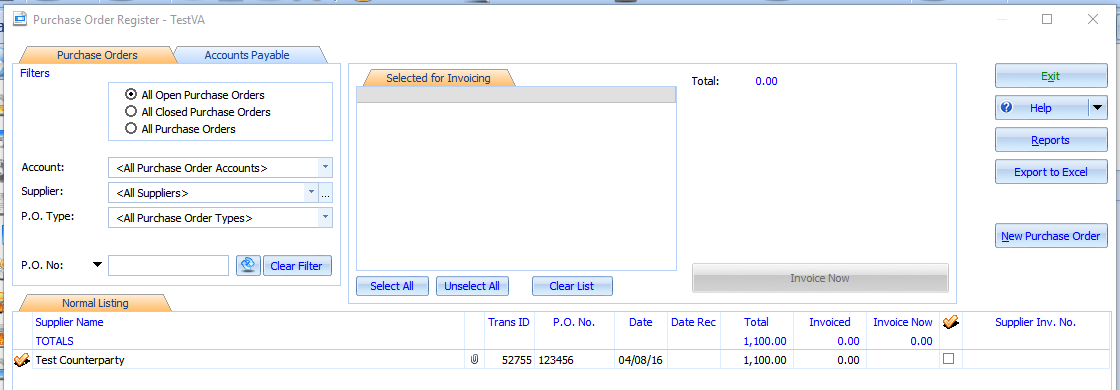
To Convert the Purchase Order in part or whole. Tick invoice now. If you are not invoicing the whole Purchase Order enter the amount in INVOICE NOW that you want to invoice.
Repeat for all Purchase Orders to be invoiced.
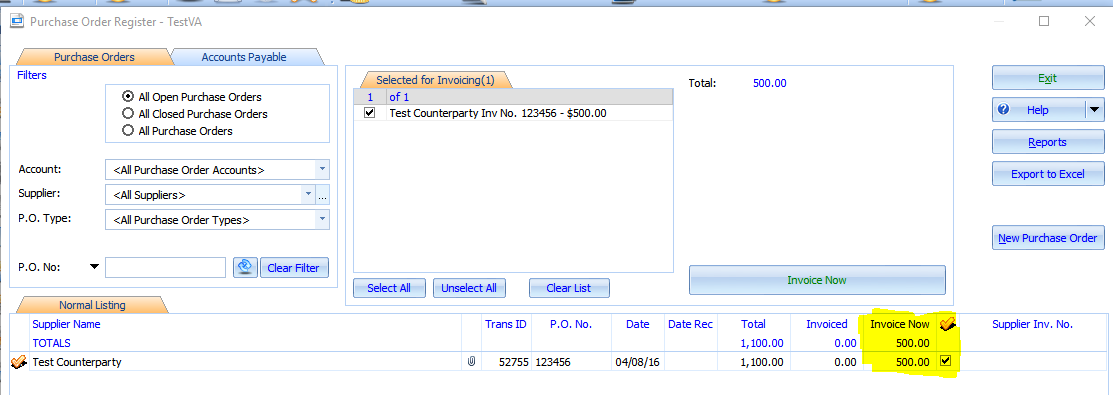
Select Invoice Now and confirm you wish to create invoices by clicking on OK
The attached link is an article, Changes to the Purchase Orders and Accounts Payable (2016.06), on some significant changes made to the Accounts Payable and Purchase Order screens to assist with dealing with large numbers of POs and APs. These include filters, selection tools, using Multiple bank accounts and credit notes.
https://exalt.zendesk.com/knowledge/articles/220307468/en-us?brand_id=930818
CREATE AN ACCOUNT PAYABLE WITHOUT A PURCHASE ORDER
To create an account payable without using purchase orders click on
TRANSACTIONS-> ACCOUNTS PAYABLE->NEW ACCOUNT PAYABLE
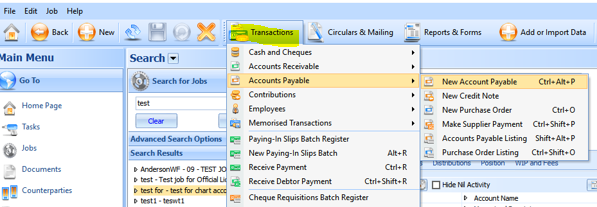
New Account Payable Screen will pop up
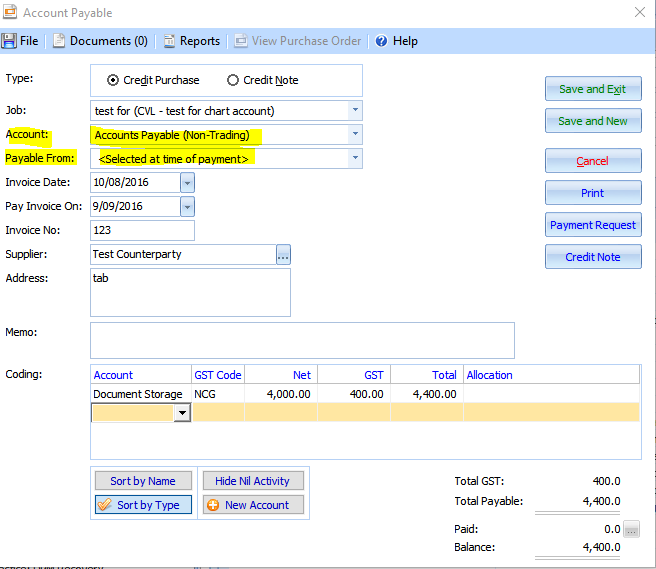
ACCOUNT - You need to determine what type of account payable you are creating. This will determine what expense accounts you can charge the invoice to.
PAYABLE FROM - You may now specify the bank account from which an Accounts Payable is to be paid from. If a Purchase Order is created with the bank account set, any corresponding invoices will preserve the same pay from account.
This allows you to set ahead of time the bank account from which you intend to make payment.
You do not have to specify the default bank account here. This bank account only needs to be specified if the bank account will be different to the job’s default bank account.
Complete the remaining details for the invoice
Attach any supporting documents to the invoice and click Save and Exit or Save and New
For assistance in attaching supporting documents please refer to the below article
https://exalt.zendesk.com/hc/en-us/articles/220070828-Attaching-documents-to-transactions
For assistance with paying account payables please refer to the article below
Paying Accounts Payable invoices using Available funds
For information on importing Account Payable payments here
Comments
0 comments
Please sign in to leave a comment.