
The container holds the database and associated files.
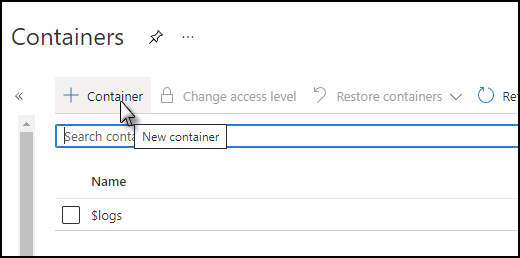
From the left-hand menu, select 'Containers' (under 'Data storage').
Click "+ Container".
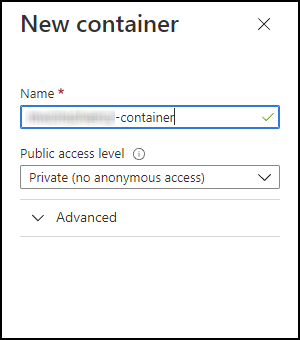
Add the following details (right-hand panel)
Name: e.g., '<client name>-container' (lower case letters, numbers and hyphens only)
Public-level access: Private (no anonymous access) (default)
Alternatively, try Container (anonymous read access for containers and blobs) for public access level
Click 'Create' (bottom of right-hand panel). The newly created container is displayed after a short time.
Click on the container to open the container page.
NOTE:
- At this point, you can upload a copy of the client database as a .bacpac file, or you can connect to the server - which is created in the next section - in SQL Server Management Studio from the workstation.
Comments
0 comments
Please sign in to leave a comment.