
The file share is used to access the storage account from the local workstation without having to log into Azure Portal. This step generates a persistent connection via a mapped drive, so is used by the application when accessing merge templates for files from document management.
From the left side menu, select 'File shares' (under 'Data storage').
Click "+ File share".
Add the following details (right-hand panel):
Name: e.g., '<client_name>-share' (letters, numbers and hyphens only)
Tier Transaction optimized (default)
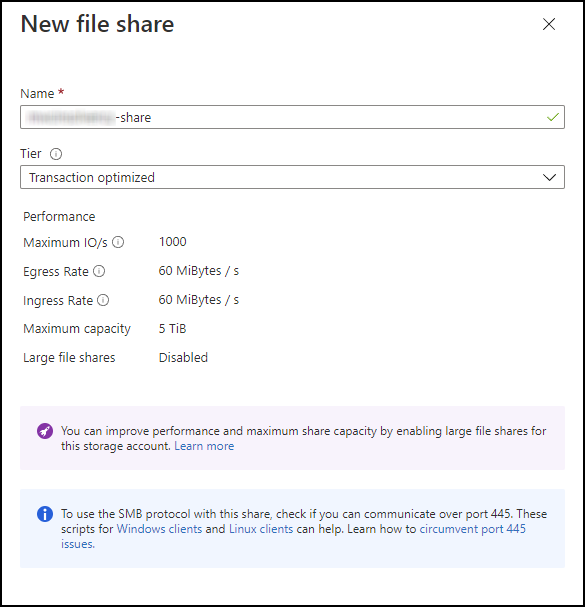
Click 'Create' (bottom of right-hand panel). The newly created file share is displayed after a short time.
Click the ellipsis to the right of the share name and select 'Quota'.
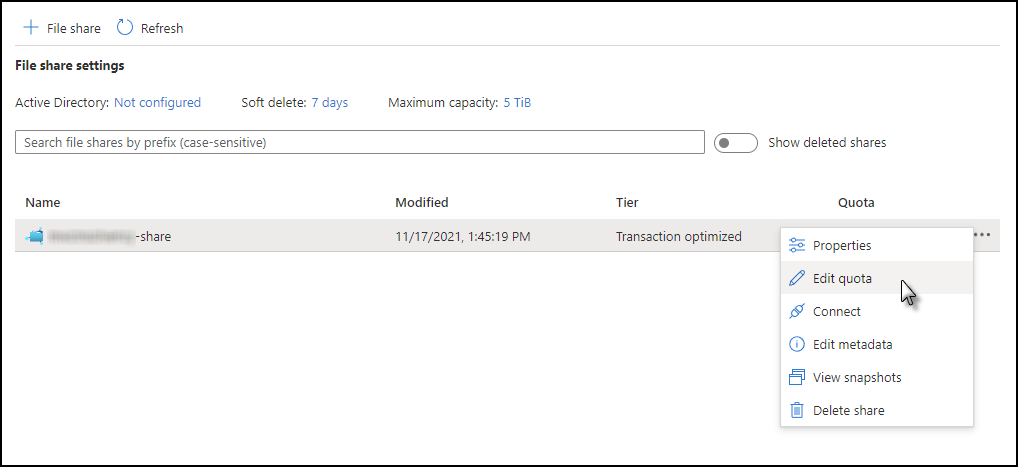
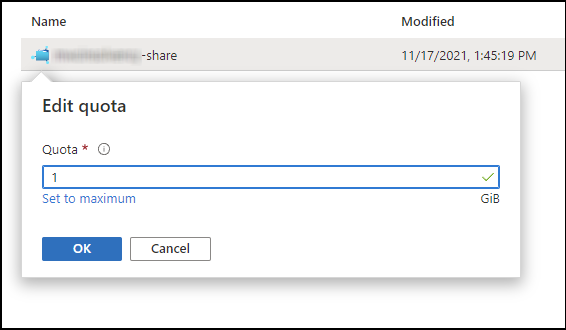
Change the value to '1' (i.e., 1Gb - the default of 5Tb should not be required) and click 'OK'.
Click the ellipsis again and select 'Connect'.
Choose a drive letter that is not already in use on your workstation.
Select the authentication method. If the client has active directory already configured, choose that option.
Copy the connection string text from the highlighted box in the right hand panel.
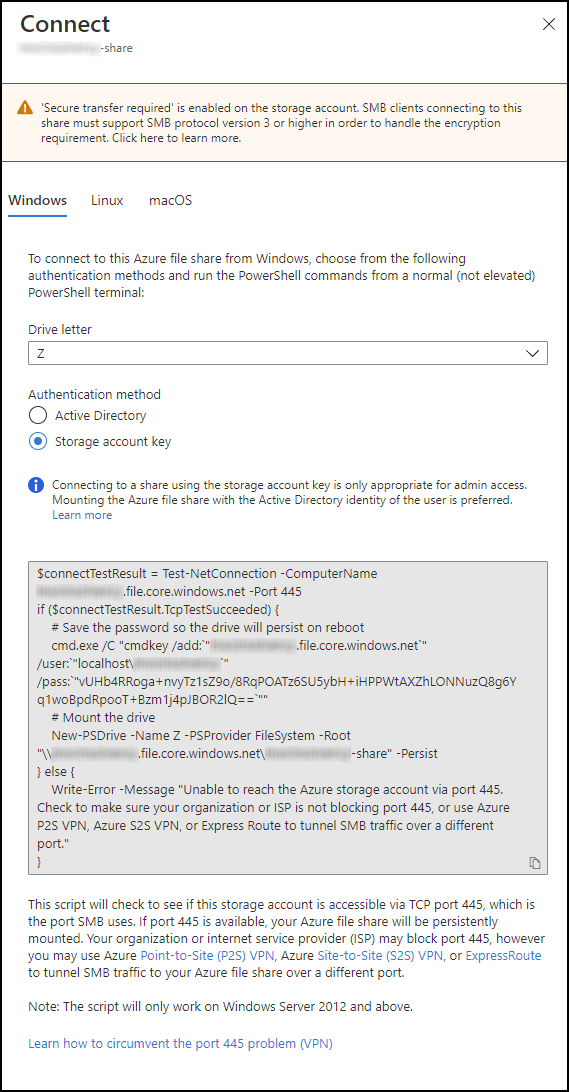
The connection string should then be executed from Powershell on the local workstation without elevated administrative privileges.
You should now see the new drive in Explorer:
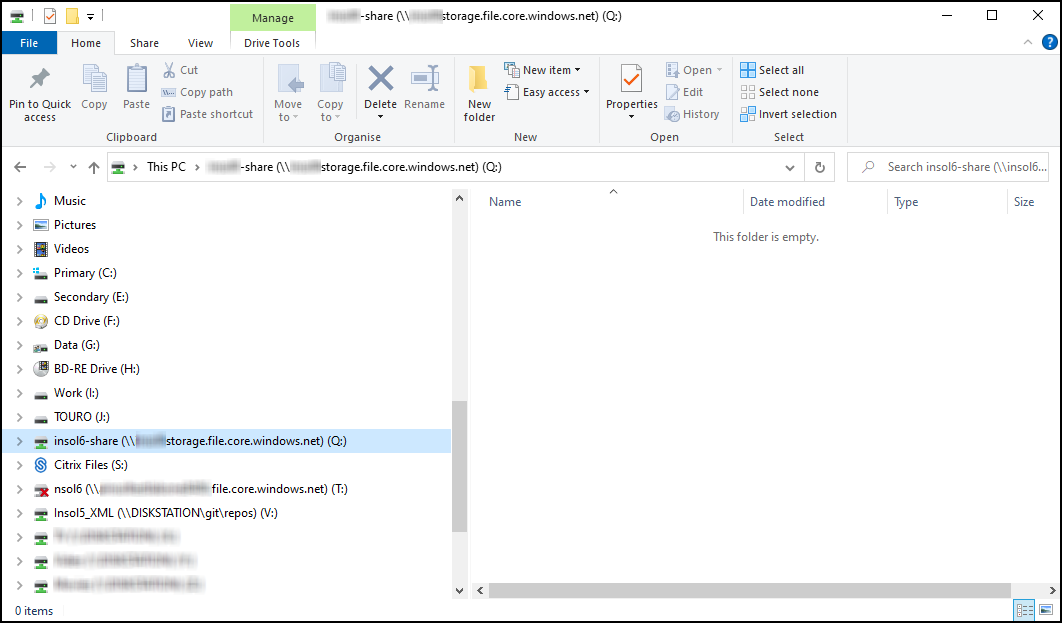
NOTES:
- Check the Quota is what you need. The default is 5Tb but 1Gb is probably sufficient for most purposes.
- See step 7 above. The Azure 'connect' method defaults to drive 'Z'. If a mapped drive letter is already in use, that link will be updated by running the Powershell script. It is best to check which drive letters are already mapped and choose a different letter.
- Check the operating system at the top of the right-hand panel is the same as in use on the workstation (connection methods are available for Windows, Linux and macOS platforms).
- Check the advice given in the right-hand panel regarding port access. A message regarding blocked port 445 is also generated by the connection string if it is blocked.
- The full URL/path must be used when setting the DM and MT paths in the application, NOT the mapped folders (i.e., "\\<document store>.file.core.windows.net\MT", not "Y:\MT").
KB article:
Mapping a drive to an Azure File Storage account
Comments
0 comments
Please sign in to leave a comment.